
You already use an AI assistant for half your working day, and your devices already report the numbers you need: temperatures, tank levels, energy draw, last-seen timestamps. But the assistant knows nothing about your fleet, and the usual workaround of exporting a CSV and pasting it into the chat gives you an answer about the past. Live device data goes stale in minutes.
The fix is a live, queryable connection to your devices, so every answer starts with a fresh read. On TagoIO there are two routes: TagoAI, the assistant built into the Admin with nothing to install, and the TagoIO MCP server, which connects an assistant you already use. This walkthrough covers the first route step by step, then shows where the second fits. For why grounding in live readings is the thing that matters, see querying your IoT data in natural language.
What you need before you start
A TagoIO account with at least one device sending data. That is the whole list for the TagoAI route, because the assistant ships inside the Admin.
If you do not see it, check Profile Settings, then Services, then AI Provider. TagoAI is enabled or disabled per profile, and on EU-region profiles it is off by default, so you may need to turn it on.
It also helps to arrive with a real question, one you would normally answer by opening three dashboards or asking an engineer. Real questions expose what the assistant can do faster than test prompts do.
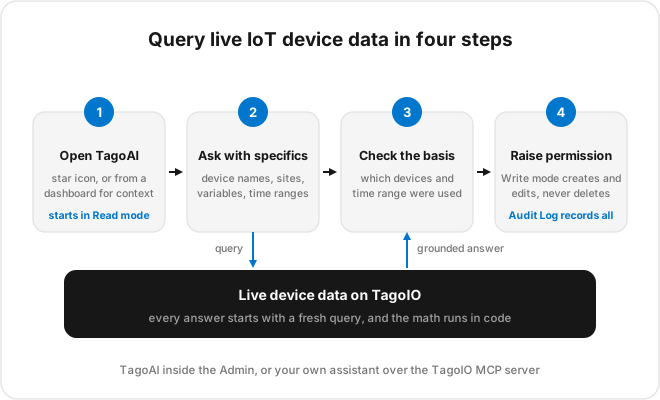
Step 1: Open TagoAI where the question lives
The star icon in the Admin sidebar opens TagoAI from anywhere. If your question is about something specific, open it from that page instead: the top bar of the Analysis and Dashboards pages opens the assistant with context, meaning it sees what you are viewing. From a dashboard, “why is this widget empty” is a complete question. From an Analysis script, so is “why did this run fail last night.” No IDs to paste, no schema to explain.
Set the mode before you type. It sits at the bottom of the chat panel, and Read Only is the one you want for querying: the assistant can list devices, inspect dashboards, review scripts, and read data, but it cannot create or change anything.
Step 2: Ask with the specifics you already know
Plain English works, and specificity pays. “How are my devices doing” produces a survey. “Which cold-chain devices have not reported since midnight, sorted by site” produces the list you were going to build by hand. Name the devices, variables, sites, and time ranges you know, and let the assistant resolve the rest.
Aggregation questions are worth a note, because this is where pasted-CSV workflows fail. When you ask for an average per site over last week, the math runs in code against live readings rather than inside the language model, which is not a reliable calculator. The question shapes that work best are worth skimming if you want a wider set of examples.
Keep one task per chat. TagoAI keeps chat history so you can return to a thread, and a chat that mixes four investigations is hard to reuse anyway.
Step 3: Check the basis before you trust the number
A grounded assistant is checkable, not infallible. Before a number leaves the chat and enters a report, ask which devices and what time range it used.
The answer takes seconds to produce and tells you immediately whether the query matched your intent, or whether “last week” meant the calendar week when you meant the last seven days. Teams that build this reflex early trust the tool more, not less, because every answer carries its receipts.
Step 4: Raise the permission when you want it to act
Querying is where most people start. Acting is where the time savings compound. TagoAI has three modes, switched from the bottom of the chat panel.
Read Only only fetches. Edit Mode can create and edit resources, such as drafting an Analysis script or building a dashboard, but cannot delete anything, which makes it the sensible ceiling for day-to-day work. Full Access adds deletion, and since deletions in TagoIO are not recoverable from the Admin, reserve it for tasks where you know exactly what you asked for.
The controls around this are strict in the right places. The assistant never changes anything silently, it can only act within your own account permissions, and everything it does is recorded in the Audit Log with who ran it, when, and what changed. A typical session moves in one direction: ask in Read Only, confirm the plan, then raise to Edit Mode so the assistant can draft the Action or script the answer called for.
The second route: your own assistant through the MCP server
Some questions come up where you already work: in your code editor, in a longer analysis, in a conversation that spans more than TagoIO. For those, the TagoIO MCP server connects an external AI assistant to your account over the Model Context Protocol, with tools for devices, data, analyses, and dashboards. You ask mid-conversation, the assistant queries live, and the answer lands next to the work that prompted the question. The setup walkthrough for connecting an assistant over MCP covers that side in full.
The two routes are complementary rather than either-or. TagoAI covers everyone working inside the platform with zero setup. MCP covers the people whose assistant is already open in another window. One habit applies to the MCP route specifically: the server acts with the token you give it, so scope that token to what the use case needs and keep sensitive accounts on read-only tokens.
Habits that keep the answers trustworthy
Three habits separate teams that keep using this from teams that try it once. Stay in the lowest mode that fits the task, and treat Full Access as an exception. Verify the basis of any number that leaves the chat. And decide deliberately who processes your data, which covers default provider agreements, bringing your own AI provider, and what that does to the monthly prompt limit. Those choices are laid out in querying your IoT data in natural language.
The recorded webinar AI Meets IoT: A Practical Experience with TagoAI runs these steps live against a real account, including permission changes mid-session, and is worth thirty minutes before you roll the assistant out to a wider team.
Ask the first question today
The distance between reading this and getting your first grounded answer is one star icon. Open TagoAI in your Admin, set it to Read Only, and ask the question you have been answering by hand every Monday. If you do not have an account yet, start free and connect a device, or book a demo to walk through your use case with an engineer.