
You already keep an AI assistant open most of the day. It drafts code, answers questions, and speeds up the work in front of you. Then you switch to your IoT account, and that assistant knows nothing about it. Your devices, your payload formats, your dashboards, your Analysis scripts: all of it is invisible to the tool you just had open. So you export a CSV, paste it into a chat, and get an answer about the past while your devices keep reporting new numbers.
TagoAI closes that gap.
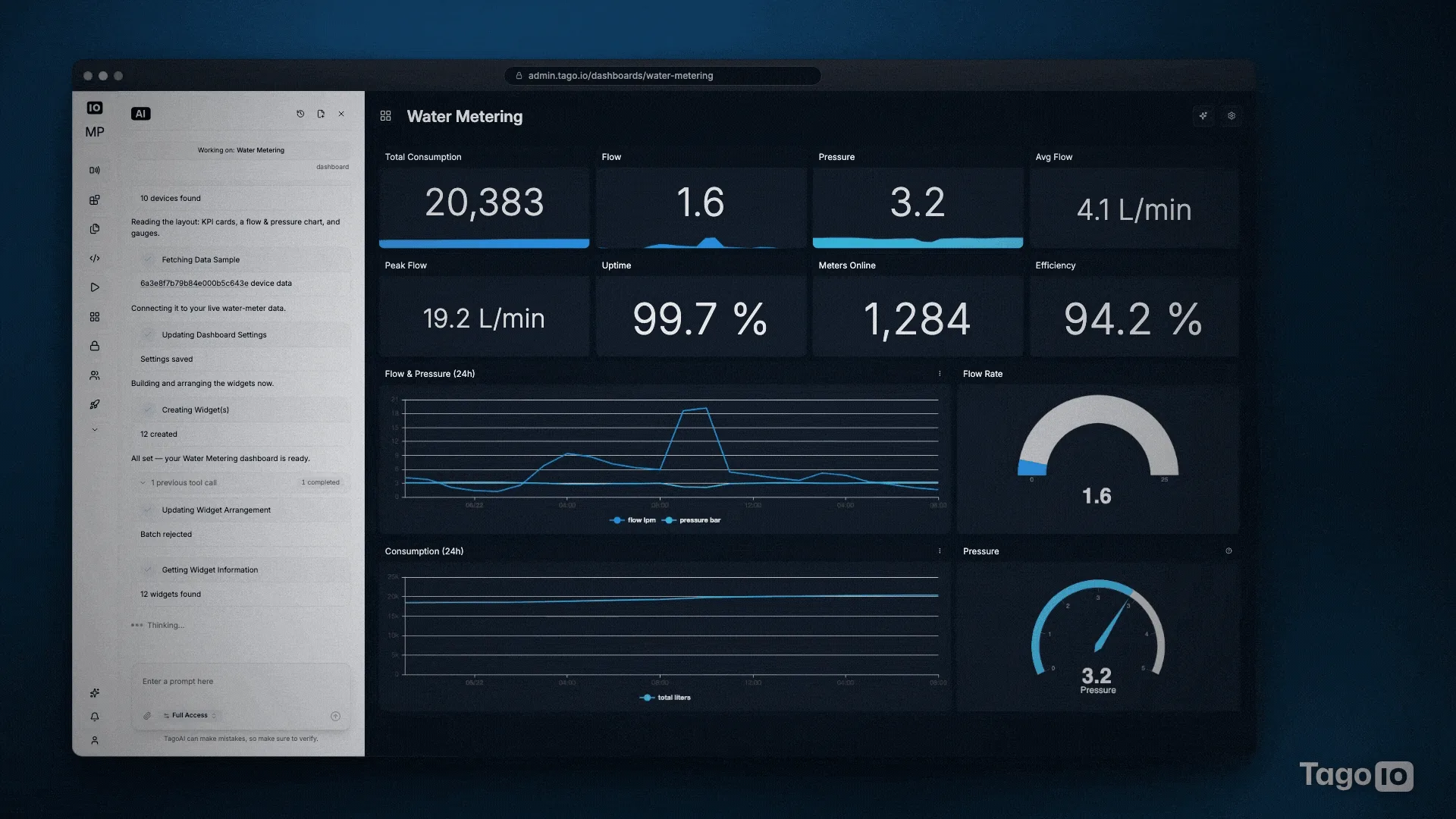
TagoAI is the AI assistant built into TagoIO, and it starts every answer from your own account: your real devices, your real data, inside your own permissions.
Built into the platform, not bolted on
TagoAI runs in the TagoIO Admin, in AI Dashboards, and in TagoRUN portals. It reads your devices, writes Analysis code, edits your dashboards, and answers questions about TagoIO itself.
Context is what changes the work. Open TagoAI from a page and it reads what is on that screen to understand your question. From a dashboard, “why is this widget empty?” is a complete question. From an Analysis script, so is “why did last night’s run fail?” There are no device IDs to paste and no schema to explain, because the assistant is already looking at what you are looking at.
It also checks before it builds. Ask for a dashboard and TagoAI reads a real sample from the device first, then binds every widget to the variables it just confirmed. You get views wired to the data you actually send, not blank panels waiting to be connected.
Two ways to reach the same account
TagoAI is one assistant with two front doors. Both act on the same account, with the same data and the same permissions.
The assistant in the Admin
Inside TagoIO, TagoAI sits behind the star icon in the sidebar, and the top bar of the Analysis and Dashboards pages opens it on whatever you have in front of you. Ask about a device, inspect the Action behind an alert, or have it write the Analysis script that parses a payload. Chat history is kept per profile, capped at 20 chats, with the oldest dropped as new ones start. Nothing to install: it is already in the Admin.
The TagoIO MCP server
Some questions come up where you already work, in a code editor or a longer conversation. For those, the TagoIO MCP server connects an outside assistant to your account over the Model Context Protocol. Point Claude Code, Cursor, Copilot, or any MCP client at your account with a token, and your devices, data, dashboards, and analyses show up in that client. TagoIO hosts the server, so a client can connect without you running anything, and the code is open source at github.com/tago-io/mcp-server if you would rather run it yourself. Scope follows the token you give it: a Profile token reaches the whole profile, an Analysis token only what that analysis can reach, a Device token only that device’s data.
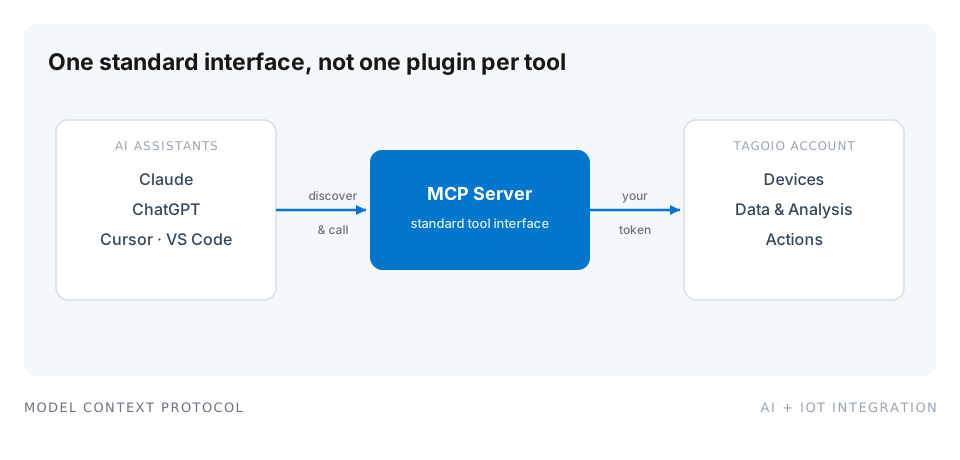
The Admin assistant covers everyone working inside the platform. MCP covers the people whose assistant is already open in another window.
What it does in a single session
TagoAI builds, edits, and answers, and every step it takes is visible in the chat panel while it happens.
When it builds, it works from the sample it confirmed, so the dashboard comes back bound to your real variable names and units. When it edits, it rearranges and rewrites but does not delete: the same widgets return in a clearer order. Dashboard edits are backed up by TagoIO either way, so restoring a previous version undoes a change whether TagoAI or a person made it. When it answers, it opens your devices and dashboards to read across the fleet, which is why Read Only is a useful mode on its own.
For a task-by-task walkthrough of asking questions well and reading the results, see how to use an AI assistant to query live IoT device data. For a full workflow that goes from exploration to production, detecting anomalies in IoT sensor data with AI shows TagoAI exploring a fleet, generating the detection Analysis, and wiring it to an Action.
You decide what it can touch
TagoAI runs in the mode you set, and you set it at the bottom of the chat panel before you send.
Read Only inspects resources, reads data, and answers questions, and writes nothing. Edit Mode can create and edit resources, such as drafting an Analysis script or building a dashboard, but it cannot delete. Full Access adds deletion, so raise it deliberately for the task in front of you, not for a session you walk away from.
Two limits sit underneath all three modes. TagoAI acts inside your own account permissions: it cannot reach what your user cannot reach, and it cannot grant itself more. And every create, edit, and delete lands in the Audit Log with the account that ran it, the time, and what changed.
Your data, and your choice of provider
TagoAI ships with a default provider, and you can point it at your own instead. You set this per profile, under Profile Settings, Services, AI Provider.
On the TagoIO default, TagoIO picks the model and the provider, and those providers operate under agreements that keep your data out of their training. Each message you send counts as one TagoAI Request against the profile’s monthly allowance, and the allowance grows with the plan. To use an account you already pay for, connect OpenAI, Anthropic, AWS Bedrock, Google Gemini, or OpenRouter: requests then run through your own provider account, billed by that provider, and the TagoIO monthly limit stops applying. Provider keys are stored in TagoIO Secrets, encrypted at rest, and the Admin does not show them again once saved.
Control stays per profile. A regulated profile and a development profile can run different providers, or one can run TagoAI while the other has it switched off. Profiles in the EU region ship with TagoAI disabled by default, and while it is off, no data from that profile reaches any AI provider. The certifications behind that are on Trust and Security.
Start with one question
Open TagoAI from the star icon in your Admin sidebar, set it to Read Only, and ask it about a device you already run. Nothing changes until you decide it should. For the longer version of how grounding, permissions, and provider choice fit together, querying your IoT data in natural language covers it.
If you do not have an account yet, start free and connect a device, or book a demo to walk through your use case with an engineer.